


ezyVet User Guide
Chckvet Integration
Table of Contents
1. Overview
1.1 About Chckvet
Chckvet provides a seamless client experience through fully automated, real-time online booking, actionable analytics, two-way communication, a client portal, and customizable workflows. The Chckvet integration with ezyVet enables clinics to offer all of these services to their clients with full two-way writeback.
1.2 How it Works
Setup is easy. You can sign up for Chckvet by heading to https://chckvet.com/ and booking a demo, or by emailing elliott@chckvet.com directly.
Once you have signed up, Chckvet then offers a white glove onboarding experience, allowing you to dictate the way in which the system operates for your practice while the onboarding team does the heavy lifting. An Account Manager will be assigned to you to answer any questions that you may have.
Clinic users sign in via https://dashboard.chckup.app/ which is a web dashboard to manage your Chckvet setup.
The Chckvet system will then allow you to message your clients through the platform, and allows you to configure the online booking settings for clients.
1.3 Regions
This integration is available in the following regions:
- 🇺🇸United States
- 🇨🇦Canada
- 🇦🇺Australia
- 🇬🇧United Kingdom
- 🇳🇿New Zealand
2. Integration In Action
2.1 Logging into the Dashboard
- Navigate to https://dashboard.chckup.app/
- Enter your credentials and select Login.
2.2 Booking Appointments Online via a Widget
Receiving appointments via Chckvet's real-time online booking requires two steps:
Head to the Widgets page on Chckvet (https://dashboard.chckup.app/booking/widgets )
Create a new widget if one does not exist. The default settings will work.
- Navigate to the Instructions page from the widget edit. You'll need to copy those instructions and send them to your website developer to install on your site.
2.3 Messaging Clients
Messaging clients via Chckvet can be performed from the Inbox page.
- Head to https://dashboard.chckup.app/chats
- Select a conversation, or start a new one using the search bar.
- Select the gear icon next to the send button to send via email or SMS.
2.4 Learning More about Chckvet
There are loads of automations and tools in the Chckvet platform. Use the Help page to learn more about what's possible, and contact your Chckvet Account Manager for anything you need.
3. How to Configure
This section details how to configure the Chckvet and ezyVet integration.
3.1 Get ezyVet Partner API Credentials
The following outlines the steps required to get your ezyVet partner API credentials.
- Log into ezyVet with relevant admin privileges.
- Select the
Admintab.
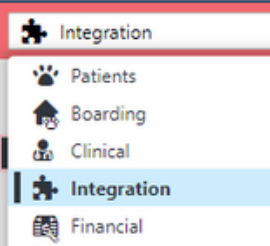
- Use the dropdown box on the left of the screen and select Integration.
- In the Integration Search Box, type and select
API Partner.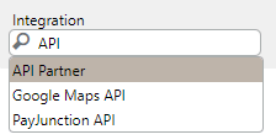
- Select
Chckvetfrom the Partner dropdown box and then selectSave. - Underneath ezyCAB Availability, push the button that says
Connect.

- Underneath Scopes, select
Select Alland then selectSave.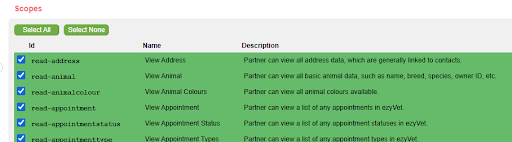
- Select
Download Credentials. Your browser will then download a file named"credentialsapi.txt".
3.2 Disabling the Integration in ezyVet
If you no longer wish to use the integration, it can be disabled by following the below instructions.
- Log into ezyVet with relevant admin privileges.
- Select the
Admintab. - Use the dropdown box on the left of the screen and select Integration.
- In the Integration Search Box, type and select
API Partner. - Select the integration and look on the right-hand side of the screen for the disable button.
- Select
DISABLE. - A pop-up will appear where you can confirm the disable by selecting
DISABLEagain.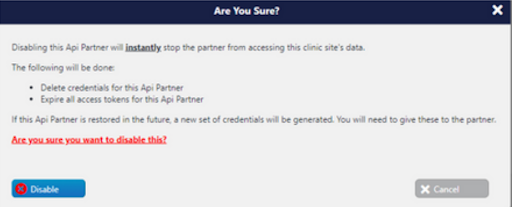
3.3 Send credentials to Chckvet
The following section details how to send your ezyVet API credentials to the Chckvet team.
- Locate the
"credentialsapi.txt"file that you downloaded in 3.1 Get ezyVet Partner API Credentials. - Send the credentials as an attachment on an email to either your Chckvet Account Manager that you have been assigned, or to support@chckvet.com along with your clinic name and the primary contact's first and last name and email.
- You should receive instructions at this point from your Account Manager on next steps, but at this point the integration is complete and operable.
4. How it Works
The following section provides a high-level overview of how the Chckvet and ezyVet systems will communicate with each other.
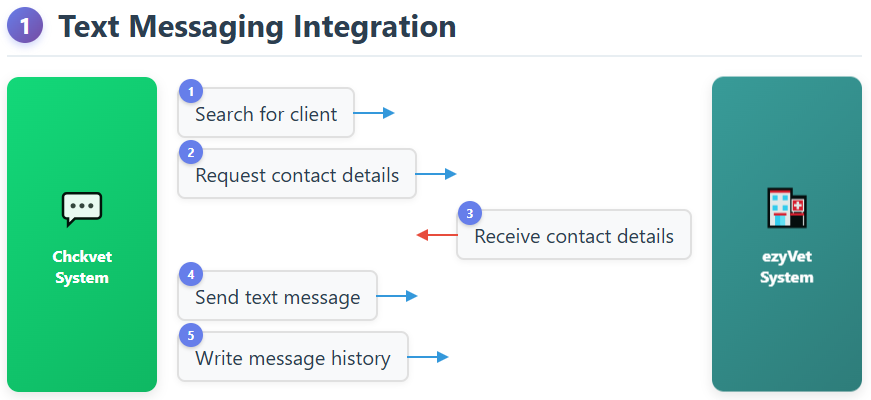
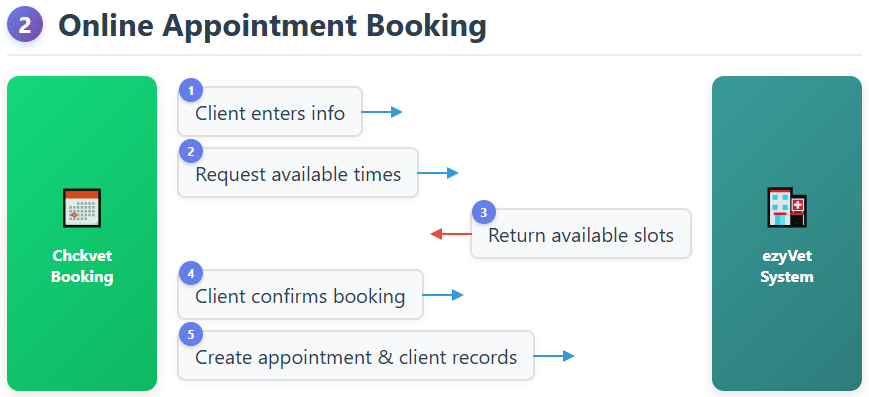
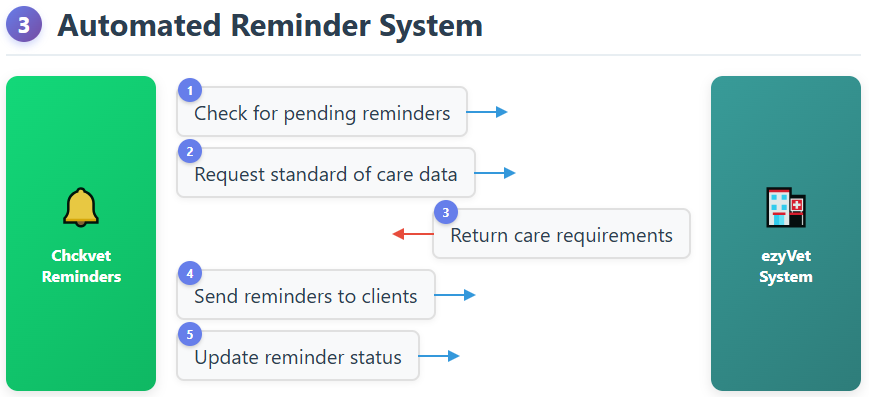
The requests and responses shown above are performed by authenticated HTTP Request and Response messages that are common on the internet. The request message contains the details of what Chckvet is requesting and the response message is the data.
5. Troubleshooting
For general troubleshooting questions, we recommend taking these steps:
- Try refreshing the page or clearing your browser cache.
- Head to the help page, and see if we already have some helpful information on how to solve the problem. https://dashboard.chckup.app/help
If you see an appointment appear in your schedule in an incorrect spot:
- Check your Scheduling Rules to ensure they line up with your guidelines.
- Check that the service selected does not have any special settings in the Services page.
- Verify that the doctor does not have any adjusted availability by checking the Clinicians page.
If a reminder goes out at a time or to a client that you were not expecting it to:
- Check the client segment of the reminder to verify that the appointment type should be included.
- Check the Standard of Care table and compare to the reminders you see on the patient in Chckvet.
- Check that the reminder send times line up with the intended reminder sequencing.

6. Technical Support
Feel free to reach out to support for any issues you have with the Chckvet integration. We are available 8am-8pm Central Time.

Chckup, Inc.
AAHA Preferred Business Provider